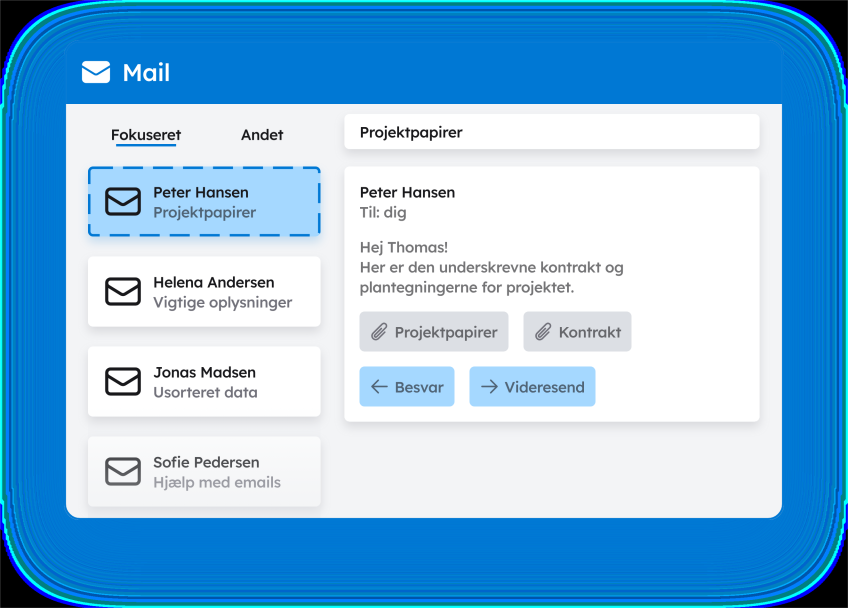
Organising Outlook emails
Many people use Outlook as a work tool, a to-do list, and a document archive all in one. It quickly leads to a full, cluttered inbox where important emails get buried among notifications, CC threads, and old messages containing documentation your colleague might be looking for.
Here is a simple and effective method to bring some calm to your inbox.
Empty your inbox in three steps
If your inbox is total chaos, you do not need to spend hours tidying it up manually. You can actually get it under control in under 15 minutes with this simple method:
1. Find out whether all emails are already being stored via your Exchange server
Speak to IT and ask whether there is a system in place that automatically archives all incoming and outgoing emails.
If there is, then a copy of everything already exists, and you can safely delete almost everything in your inbox.
2. Only review the last 30 days
This is where 90% of your current tasks and conversations live.
Deal with them:
- Delete what is irrelevant
- Reply to what is necessary
- Save what you will need in the near future
3. Delete the rest of your inbox guilt-free
If IT has a complete email archive, there is no reason to organise emails in Outlook.
Anything older than 30 days can therefore be cleared from your inbox.
Once your inbox is under control, you can move on to a preventative strategy for better email management.

The groundwork
A shared preventative effort against clogged inboxes

Individually
Build a habit
Decide when and how you handle emails. Should you review them little and often throughout the day, or is it better to set aside fixed times each day? Whichever model you choose, the aim is to build a consistent habit that prevents your inbox from becoming a chaotic dumping ground again.

As a team
Categorise your emails
The biggest pitfall in Outlook is that important emails become personal knowledge that sits in just one employee’s inbox. That is why you should agree where this documentation actually belongs. When emails contain project information, decisions, agreements, or history, they should be stored in a system where others can find them.

Strategically
The structure of saved emails
To avoid clutter and uncertainty, you need a clear standard for the folder structure used for saved emails. Without a shared approach, different practices quickly emerge, creating an inconsistent structure and increasing the risk that important documentation is lost or stored in a way that does not meet your compliance requirements.
"Organising emails in Outlook is a shared responsibility – do yourselves a favour and automate as much as possible."
Automate email organisation in Outlook
Even with the best intentions and clear standards, an inbox will sooner or later start to slip if the organisation depends on your own memory and discipline. That is completely normal. The volume of emails increases, the pace picks up, and after a few busy weeks, folders, rules, and categories become something you “just get done later”.
That is why the most effective way to prevent clutter in your Outlook is not to work harder – it is to automate the organisation, so it becomes a natural part of your workflow.
Four practical steps to an empty inbox you can implement today
1. Create a shared understanding
When everyone recognises that inboxes contain documentation others may need, it becomes natural to move it out of Outlook and into a shared email drive.
2. Introduce a fixed email routine
For example, 10 minutes daily or 30 minutes weekly, so the inbox is not allowed to grow unchecked. One rule could be that you never go into the weekend with unread or unresolved emails still sitting in your inbox.
3. Move email documentation out of Outlook
This prevents clutter, strengthens collaboration, and makes knowledge available in the context where it is needed across the organisation.
4. Automate the process
There is no reason to archive and organise emails manually when there are plugins that can do it automatically and continuously.
Get inspired by MARS
Did you enjoy the article? Then join MARSLab.
Receive invitations to professional livestreams and stay updated when we share new content that can strengthen your digitalisation strategy.
Welcome to MARSLab
Information